
Featured Content

Power Query for Excel Users — New Book
12 real workplace scenarios. Every chapter ends with a deliverable. Follow Quinn from messy exports to a working data model. Published by Packt.

Building Claude Dashboards on Microsoft Fabric with Fabric IQ MCP
Build a Claude Dashboard from a Microsoft Fabric semantic model via the Fabric IQ MCP server: DAX queries, CSV snapshots, and the quirks we hit along the way.
Power BI SVG Measures: 7 Use Cases, 17 Rules, and an AI Prompt
Power BI SVG measures: stop breaking yours. Learn where to use them, follow 17 priority-based rules, and grab an AI prompt template for bulletproof visuals.

Connecting Clockify to Power BI: Three Integration Patterns That Work
Connect Clockify to Power BI three ways: hand-rolled Web.Contents calls, the free custom connector, or a ready-made template. Pick by build versus ship.
bibb Analytics: Designing Measurement Like a BI Problem
The same framework we apply to client BI work applies here: goals first, layers second. Here is the strategy behind bibb.pro's analytics.
bibb Analytics Build in Public: Introduction
bibb.pro had GA4 running since day one. Events were firing. Data was collecting. But without a strategy, that is noise with a database attached. This series documents fixing that.

Git for Power BI and Fabric Users: A Beginner's Guide
Power BI and Fabric development is moving toward programmatic workflows. Here is what Git is, how to install it on Windows, and how to use it as a BI or Fabric developer.

6 Power BI Modern Button Slicer UI Patterns for Better Dashboards
Learn 6 Power BI Button Slicer UI patterns to build modern dashboards: segmented controls, tabs, KPI cards, toggle buttons, and more.

How to Design Better KPIs Before They Mislead You
How to design better KPIs starts with knowing what your formula isn't measuring. A real BI case study in dashboard blind spots, with DAX examples and a fix.

AI Agent Skills: Stop Paying for Tokens You Don't Need
AI agent Skills replace bloated instruction files with on-demand context loading — cutting token waste by 80% for Excel and Power Query workflows.
KPI Tree for Performance Management: A Visual 7-Step Guide
KPI Tree for Performance Management: a practical 7-step method to align strategy with KPIs, cut metric overload, and create dashboards people actually use.
Salesforce Power BI Integration: A Practical Comparison Guide

Salesforce Power BI integration is a frequent requirement; however, the approach varies significantly between teams.
Most implementations fall into three categories: using Salesforce reports through the native Power BI connectors, building a custom integration via the Salesforce API, or using a dedicated connector available on Salesforce AgentExchange.
All three approaches enable access to Salesforce data, but they differ in their ability to manage large datasets, complex reporting requirements, and ongoing maintenance.
This article evaluates Salesforce Power BI integration approaches across practical scenarios, with a focus on stability, reusability, and operational effort.
Salesforce Power BI Integration Challenges You Should Know
Integrating Salesforce with Power BI extends beyond establishing connectivity. The primary challenge involves extracting and utilizing Salesforce data outside its native operational context.
Even after integration is established, limitations persist regarding data retrieval, interpretation, and long-term maintenance.
Data volume vs reporting limitations
Salesforce does not provide uniform access to all data for external reporting. Many integrations depend on reports or constrained queries, which become increasingly restrictive as data volume expands. Limitations on rows, filters, and query complexity often necessitate dividing extraction into multiple processes, thereby increasing overall complexity.
Data meaning changes across teams
Data extracted from Salesforce often loses contextual information inherent to the system. Report-level logic, including filters and calculated fields, is not explicitly transferred to Power BI, resulting in inconsistent metric definitions across reports.
The gap between access and usability
Access to Salesforce data does not guarantee analytical readiness. Because the Salesforce data model is optimized for operational purposes, relationships, historical changes, and derived metrics often require reconstruction in Power BI, increasing effort and reducing consistency.
Overview of Salesforce Power BI Integration Approaches
With these structural limitations in mind, the next step is to look at how they appear in actual Salesforce Power BI integration setups.
Each approach addresses the integration challenge with distinct trade-offs in setup effort, control, scalability, cost, and maintenance. The following sections review each method individually before presenting a comparative analysis.
Native Salesforce connectors in Power BI
Power BI includes native Salesforce connectors for Salesforce Reports and Salesforce Objects.
The Reports connector uses existing Salesforce reports as the source. This is useful when the reporting logic is already defined in Salesforce, but it inherits the report structure and the Salesforce Reports row limitation.
The Objects connector retrieves records from Salesforce objects instead of report outputs. This gives broader access to underlying data, including standard and custom objects, but it also requires the Power BI user to understand Salesforce object relationships and rebuild the reporting logic in Power Query, DAX, or the Power BI semantic model.
Custom API integration
A custom API integration connects to Salesforce directly through Salesforce APIs and extracts data according to logic built by the internal engineering or data team.
This gives the highest level of control. Teams can define which objects and fields to retrieve, how to handle pagination, how often data should refresh, and how extracted data should be prepared before it reaches Power BI.
This approach incurs significant ownership costs, as teams are responsible for maintaining authentication, API usage, error handling, schema changes, query performance, and incremental extraction logic. While effective within broader data platforms, it is often excessive when the sole objective is Salesforce reporting in Power BI.
Metrica Power BI Connector for Salesforce (available through AgentExchange)
Metrica Power BI Connector for Salesforce is installed from Salesforce AgentExchange and operates from within the Salesforce environment.
Data extraction is defined through configurable data sources in Salesforce. Each data source specifies the objects, fields, and filters to be included and is used by Power BI as a dataset.
The connector handles interaction with Salesforce APIs, including query execution, batching, and pagination. It also supports incremental refresh, allowing datasets to be updated without full reloads.
Power BI connects to these predefined data sources instead of querying reports or objects directly. Extraction logic is defined once and reused across reports.
This Salesforce Power BI integration method centralizes data retrieval within Salesforce, minimizing duplication of extraction logic in Power BI and across multiple dashboards.
Approach 1: Using the Native Salesforce Connector in Power BI
The native Salesforce connector in Power BI is often the initial choice due to its immediate availability and lack of additional integration requirements. However, it should not be regarded as a uniform solution. Power BI offers two Salesforce access methods: Salesforce Reports and Salesforce Objects, which address distinct reporting needs and present unique limitations.
How it works
With Salesforce Reports, Power BI retrieves the output of an existing Salesforce report. The report structure is defined in Salesforce before the data reaches Power BI. This includes selected fields, filters, groupings, formulas, and report-level logic. Power BI receives the report result set rather than querying the underlying Salesforce objects directly.
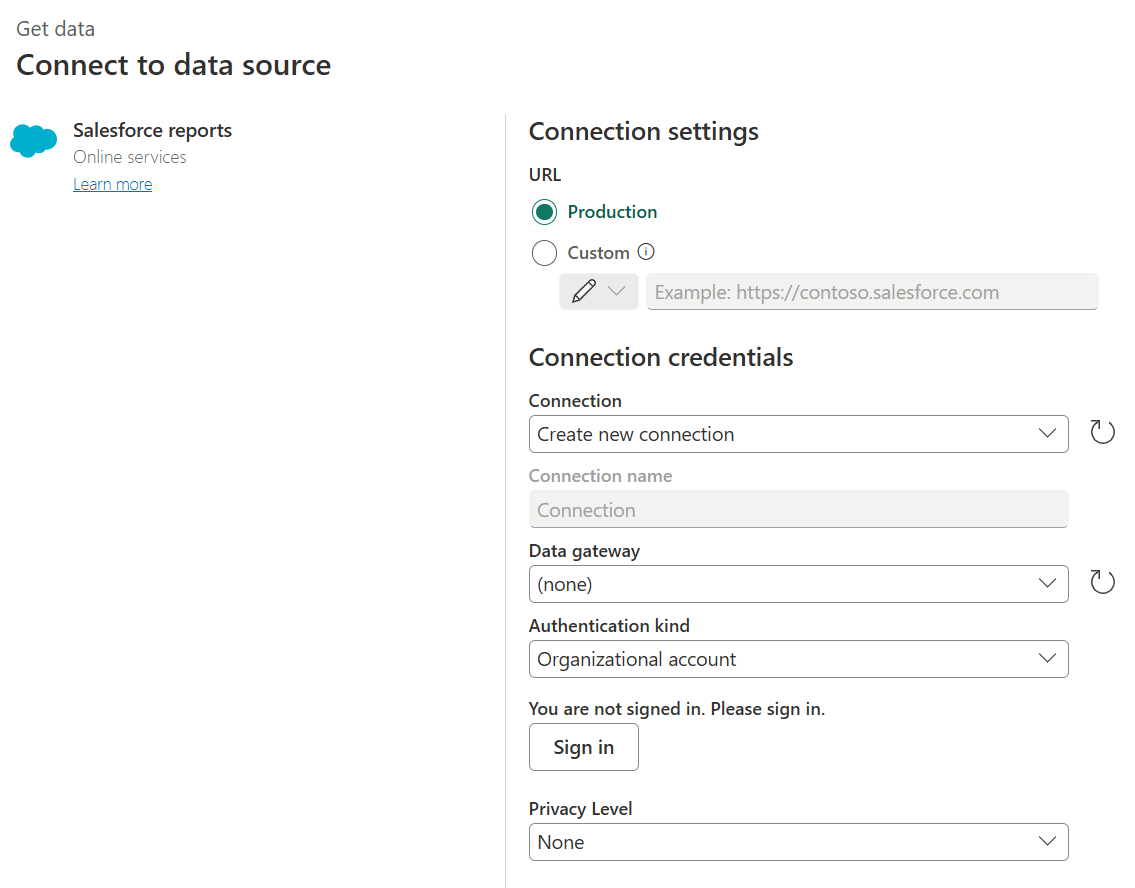 Image Source: Microsoft Learn
With Salesforce Objects, Power BI connects to Salesforce objects and retrieves records from individual standard or custom objects. This avoids the Salesforce Reports row limit, but it also changes the work required. Instead of consuming prepared report outputs, the team must build relationships, filters, calculations, and business logic inside Power BI.
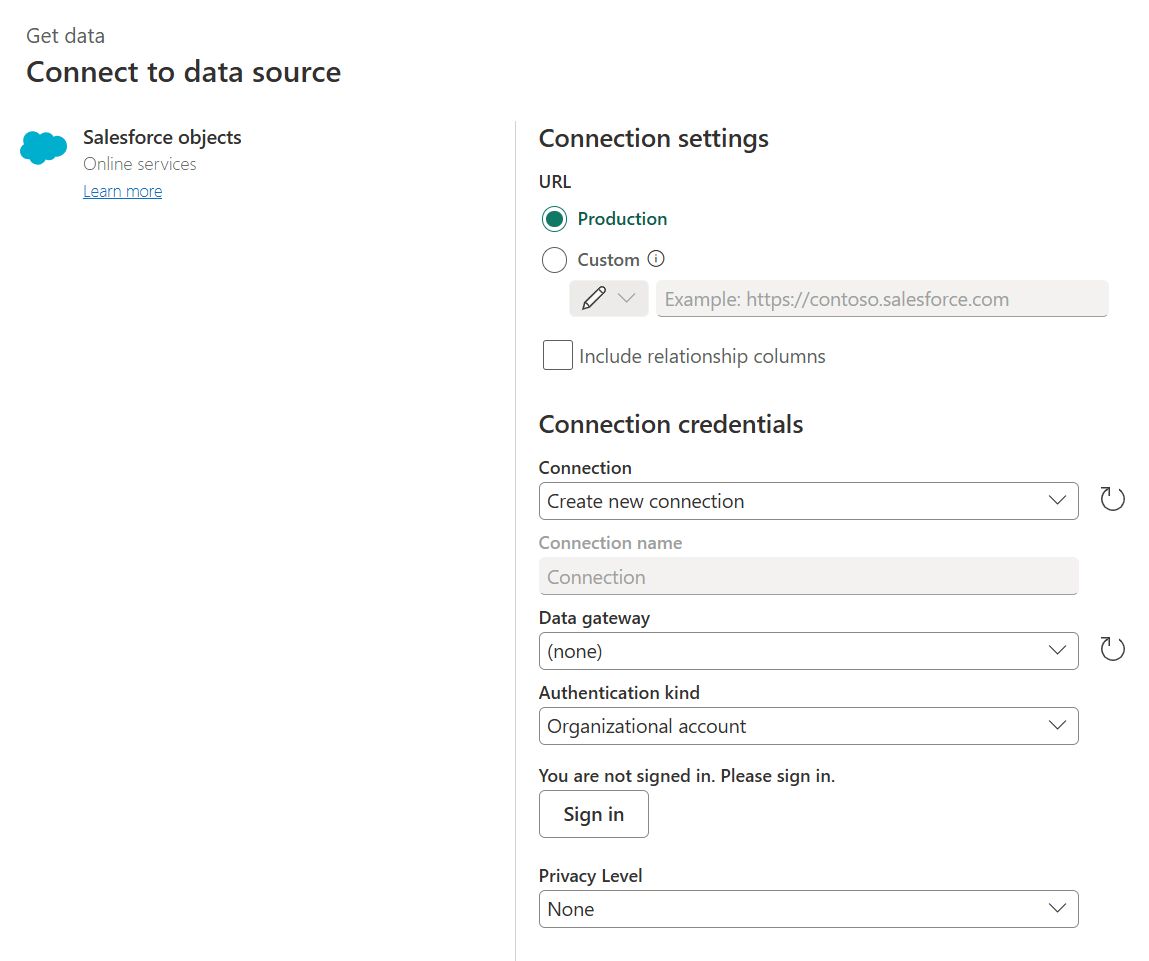 Image Source: Microsoft Learn
Both connectors require Salesforce API access. Microsoft notes that Salesforce trial accounts do not have API access, and the connection can also be affected by Salesforce session settings, unsupported Lightning URLs, and custom URL restrictions.
Strengths
-
Fast setup for initial Salesforce reporting — the native connector is the shortest path from Salesforce data to a Power BI dataset. It requires authentication, source selection, and modelling inside Power BI, without installing another app or building an integration service. This makes it useful when the goal is to validate reporting requirements quickly.
-
Useful when Salesforce reports already contain trusted logic — the Reports connector is effective when an existing Salesforce report accurately reflects the required business view in Power BI. If the report is concise, stable, and maintained by a designated owner, Power BI can leverage this prepared output, avoiding redundant reconstruction of filters and calculations.
-
Object-level access is available when report output is not enough — the Objects connector gives access to Salesforce objects rather than report results. This is important because the Objects connector does not have the 2,000-row limit that applies to Salesforce Reports.
-
No additional integration layer to operate — for limited reporting scenarios, a reduced number of components is advantageous. No additional connector applications, data warehouses, middleware, or custom services are required. Power BI connects directly to Salesforce, maintaining a straightforward initial architecture.
-
Good fit for Power BI teams comfortable with semantic modelling — the Objects connector is effective when the business intelligence team possesses a strong understanding of the Salesforce data model and is equipped to manage relationships, transformations, and metrics within Power BI. In such cases, object-level access offers greater flexibility than report-based access.
Limitations
-
Salesforce Reports: 2,000-row hard limit — report-based access is limited to 2,000 rows per request, rendering it unsuitable for comprehensive dataset extraction and necessitating segmentation of data across multiple reports.
-
Reports act as unstable data contracts — Power BI consumes report output, not underlying data. Changes to report filters, fields, or formulas directly change the dataset, often without visibility or versioning.
-
Objects connector shifts modelling into Power BI — object-level access removes the report limit but requires rebuilding: relationships (lookups, hierarchies), business logic (pipeline definitions, metrics), and consistent filters across reports. This approach transfers semantic ownership to individual datasets.
-
API-bound extraction and refresh behaviour — object-level access depends on Salesforce API limits, pagination, and concurrency. Several datasets or large pulls increase refresh time and failure risk.
-
No centralised extraction layer — each Power BI dataset defines its own extraction logic, leading to frequent reimplementation of identical Salesforce concepts and resulting in inconsistencies across reports.
-
Environment and access constraints — API access must be enabled. Session settings, domain configuration, and concurrent API usage can affect connectivity and refresh reliability.
-
Data governance shifts outside Salesforce — once ingested into Power BI, Salesforce data is governed by Power BI permissions at the dataset level, which lack the fine-grained restrictions of Salesforce access controls. This limitation prevents restricting data extraction while permitting report usage.
When this approach works best
- Early-stage reporting and prototyping
- Report-driven use cases with stable Salesforce reports
- Limited data volume within report or API constraints
- Refresh stability is not a critical requirement
- Isolated dashboards without shared dataset requirements
- Teams capable of rebuilding logic in Power BI
- Environments without dedicated data engineering resources
Approach 2: Building a Custom API Integration
A custom integration extracts data from Salesforce via its APIs and materializes it into a controlled dataset for Microsoft Power BI. The team assumes full responsibility for query execution, extraction strategy, and data definition.
How it works
- Data is queried using Salesforce APIs (REST, Bulk API, SOQL)
- Large datasets are extracted via batched requests or Bulk API jobs
- Pagination is implemented explicitly (cursor-based or batch-based retrieval)
- Incremental extraction is implemented using system fields (e.g. LastModifiedDate)
- Data is written to a staging layer (database, lake, or service)
- Transformations (joins, denormalization, history handling) are applied before or after staging
- Power BI connects to the staged dataset, not to Salesforce directly
Strengths
-
Full control over query execution and extraction strategy — control over field selection, filters, relationship traversal, batching, and incremental logic.
-
Decoupling from Salesforce report layer — no dependency on report definitions, report limits, or report-level logic.
-
Scalable extraction for extensive datasets — Bulk API and controlled batching facilitate the extraction of millions of records with predictable performance.
-
Centralised and versioned data definition — extraction logic is implemented once, version-controlled, and reused across all downstream reporting.
-
Controlled refresh behaviour — refresh frequency, ordering, dependency handling, and retry logic are explicitly defined.
-
Conformity with warehouse-first architectures — fits naturally into data platforms where Salesforce is one of multiple sources.
Limitations
-
Engineering ownership of the entire pipeline — the team is responsible for designing, building, monitoring, and operating extraction, transformation, and delivery processes.
-
Longer implementation timeframe — building a custom API integration requires significant time for design, development, testing, and deployment before it becomes usable for reporting.
-
API limits, concurrency, and throughput constraints — subject to Salesforce limits on:
- daily API calls
- concurrent requests
- Bulk API job limits
- query complexity and timeout thresholds
-
Complex incremental and historical data handling — handling updates, deletes, and history requires:
- change tracking logic
- snapshotting or slowly changing dimension strategies
- reconciliation processes
-
Schema evolution and dependency management — changes in Salesforce (fields, objects, relationships) must be detected and handled in code.
-
Infrastructure and orchestration overhead — requires:
- compute (jobs, services)
- storage (database, lake)
- scheduling and orchestration
- monitoring and alerting
-
Data latency and pipeline dependency — data freshness depends on pipeline execution, not direct query; failures delay availability.
-
Security and access management shifts to the pipeline — access control is enforced in the staging layer, not directly in Salesforce.
When this approach works best
- Data volume requires full extraction, not report outputs or partial queries
- Reporting depends on combining multiple Salesforce objects with custom logic
- Business definitions must be implemented once and version-controlled
- Data refresh must be predictable and independent from Salesforce UI behaviour
- Salesforce data needs to be combined with other systems (ERP, product, finance)
- The organisation already operates or is building a central data platform
- There is ownership of data pipelines within a data engineering function
Approach 3: Metrica Power BI Connector for Salesforce
Power BI Connector for Salesforce, developed by Metrica Software and available on Salesforce AgentExchange, enables teams to define Salesforce data sources within Salesforce for direct use in Microsoft Power BI.
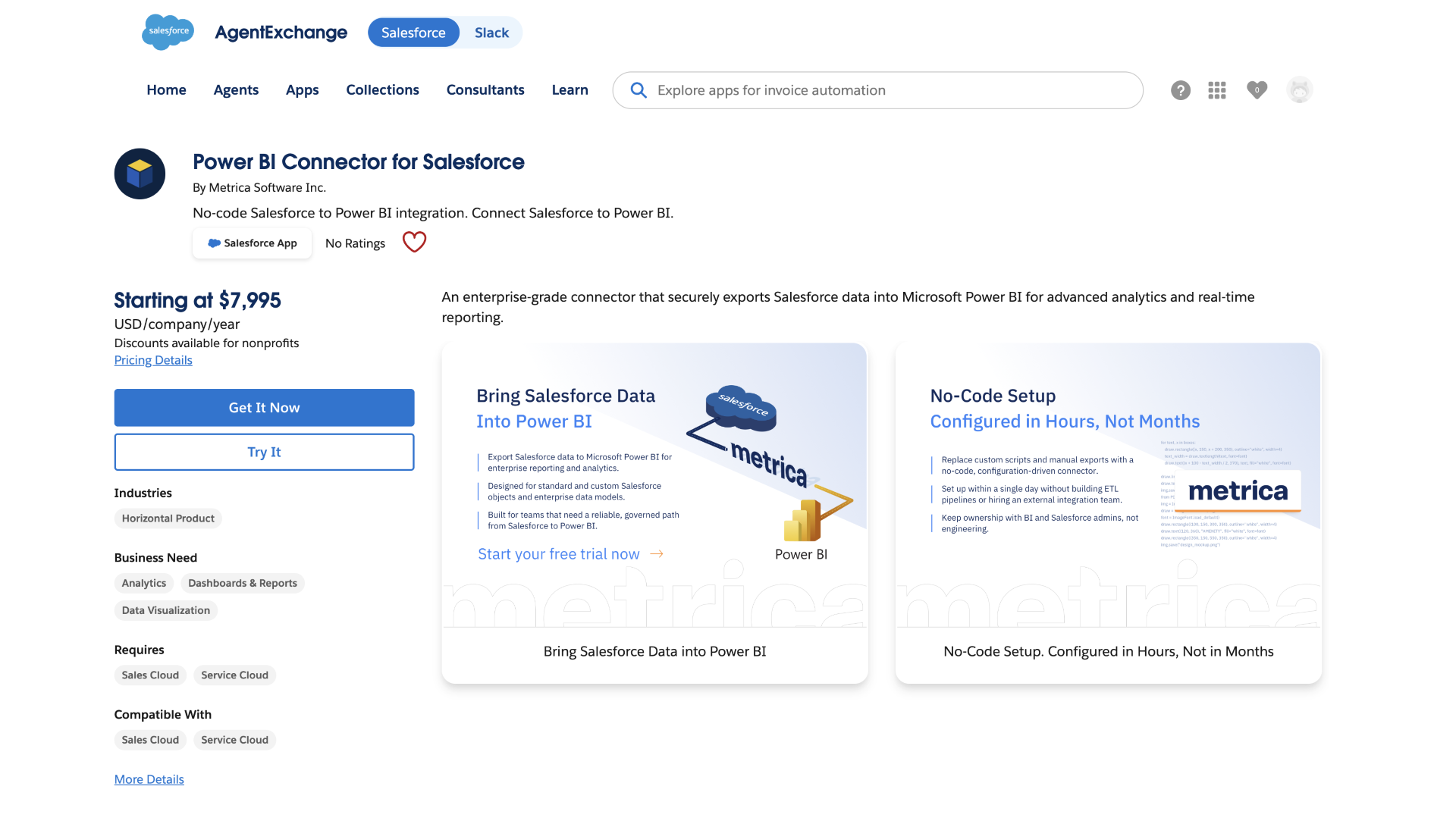
Data source creation is the central step. It defines which Salesforce data becomes available in Power BI, including selected objects, fields, filters, and the resulting dataset structure before it is used.
How it works
- Installed from Salesforce AgentExchange and runs inside Salesforce
- Data sources are defined by selecting objects, fields and filters
- Each data source represents a predefined dataset for Power BI
- The connector translates data source definitions into API queries
- Power BI connects to these data sources rather than querying reports or objects directly
- Pagination, batching, and API interaction are handled by the connector
- Incremental refresh updates only changed data instead of full dataset reloads
- Data source sharing, ERD view, and export history support visibility and control
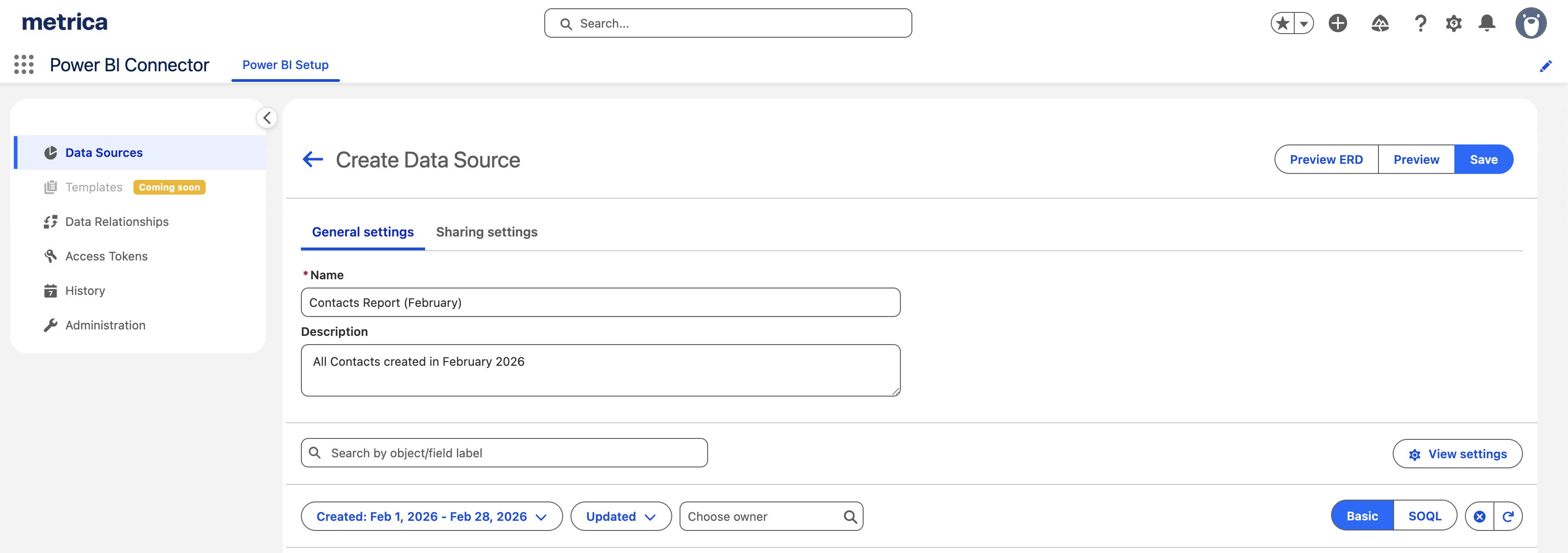 Image Source: Metrica Power BI Connector for Salesforce Docs
Strengths
-
Salesforce-side control of data selection — objects, fields, filters, and relationships are defined inside Salesforce before the dataset is used in Power BI.
-
Data source-level governance and control — permissions, data source sharing, and change history are managed at the data source level, allowing controlled access and visibility into how datasets are defined and modified.
-
Reusable data sources for different reporting needs — teams can create named data sources and reuse them across multiple Power BI reports, eliminating the need to repeatedly reconstruct extraction logic.
-
Object-level access without Salesforce Reports limits — the connector avoids dependency on report outputs and the 2,000-row limitation of Salesforce Reports.
-
Managed extraction without custom API development — API interaction, batching, pagination, and query execution are handled by the connector without building custom pipelines.
-
Incremental refresh for larger datasets — datasets can be updated without full reloads, improving performance for larger Salesforce data volumes.
-
More consistent reporting definitions — shared data sources minimize duplicated filters, mismatched fields, and inconsistent logic across reports.
-
Visibility into data structure and extraction behaviour — ERD view, data source history, and export history provide insight into relationships, changes, and extraction activity.
-
Lower operational overhead than custom integration — this approach eliminates the need to develop and maintain infrastructure, orchestration, and API management logic.
-
Fast initial setup — initial data extraction can be configured in a single day, including defining data sources and connecting them to Power BI.
-
Vendor-supported integration layer — the connector is maintained as a product, including updates for Salesforce API changes, bug fixes, and compatibility with Power BI.
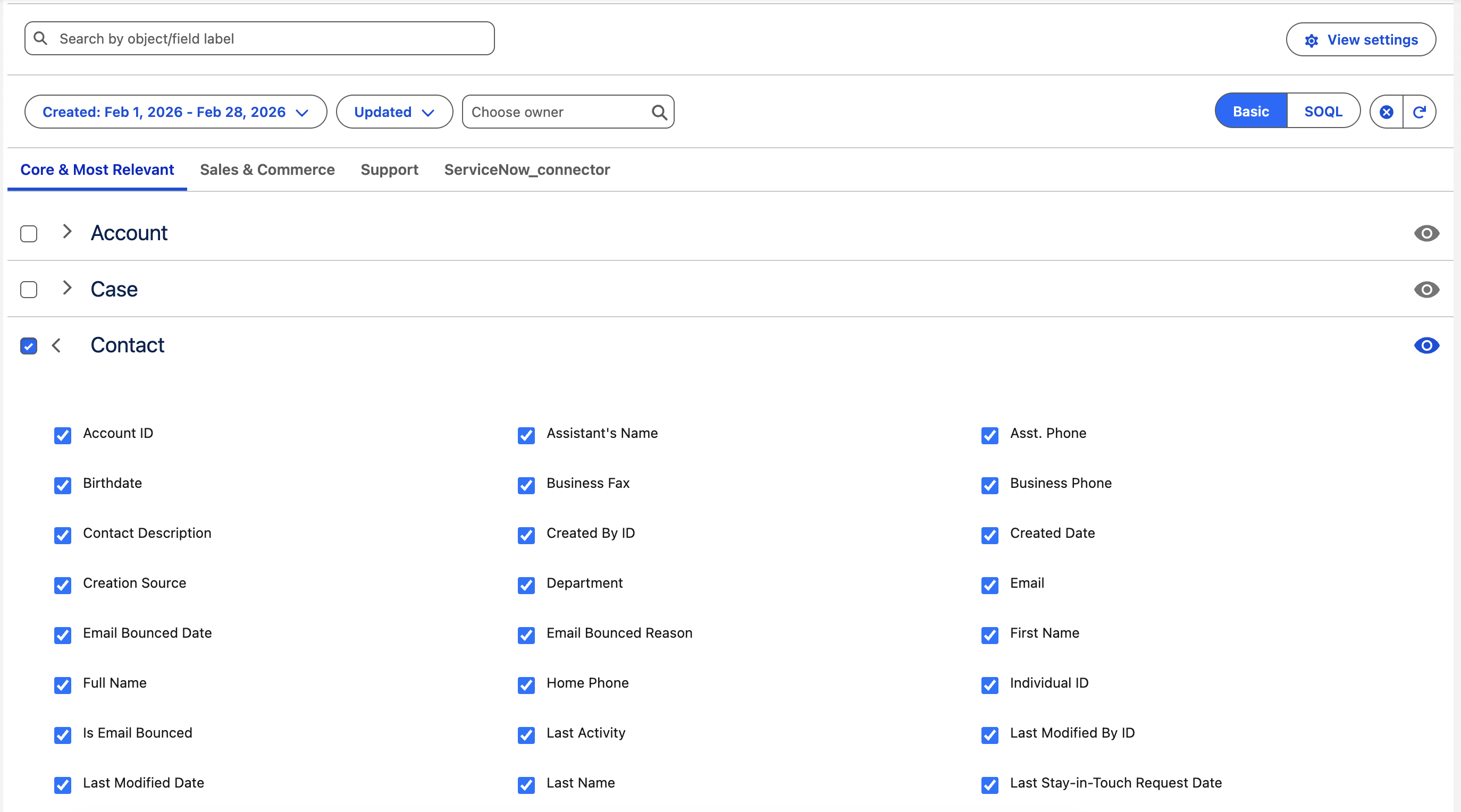 Image Source: Metrica Power BI Connector for Salesforce Docs
Limitations
-
Not a multi-source platform — focused on Salesforce-to-Power BI reporting, not multi-source orchestration.
-
Requires understanding of Salesforce data model — correct dataset definition depends on understanding object relationships, custom fields, and business logic inside Salesforce.
-
Power BI modelling remains necessary — the connector handles extraction but does not replace semantic modelling, relationships, and measure definition in Power BI.
-
Data scope follows Salesforce permissions — returned datasets reflect the permissions of the configured Salesforce user, requiring careful setup for consistent access.
-
Additional cost compared to native connector — this approach introduces a separate product cost. The trade-off is no engineering effort and structured data extraction.
When this approach works best
- Salesforce is a primary reporting source
- Report-based access is insufficient or constrained
- Reusable datasets are required across multiple reports
- Data volume requires incremental refresh
- Standard and custom objects must be combined consistently
- Strict data access rules must be enforced across all reports
- Teams want structured extraction without building custom API pipelines
- A custom API integration is not viable due to the required ownership, maintenance, and operational overhead
- Enterprise Salesforce environments with high data volume and complex object models
Salesforce Power BI Integration Approaches Compared
The approaches outlined above access the same Salesforce data but differ in how the data is materialized, governed, and reused prior to reaching Microsoft Power BI.
The choice between them is about where extraction logic lives, how datasets are defined, and how reliably reporting can scale.
Comparison by dimension
Based on data volume
- Native Reports → suitable for limited report result sets; constrained by the 2,000-row Salesforce Reports limit
- Native Objects → supports larger datasets than Reports, but remains affected by Salesforce API usage and Power BI refresh behaviour
- Custom API → can be designed for large-scale extraction through batching, Bulk API, and controlled pipeline logic
- Metrica → supports large Salesforce datasets through managed extraction and incremental refresh
Based on data definition and reuse
- Native Reports → data definition is tied to Salesforce report configuration
- Native Objects → data definition is built in Power BI models and can be duplicated across datasets
- Custom API → data definition is centralised in a pipeline, storage layer, or data platform
- Metrica → data definition is managed through Salesforce-side data sources
Based on control over extraction
- Native Reports → extraction follows the Salesforce report output, with limited control beyond report configuration
- Native Objects → extraction is controlled through Power BI queries and connector behaviour, within Salesforce API constraints
- Custom API → extraction logic, batching, retries, and transformations are controlled by the engineering team
- Metrica → extraction is controlled through configured data sources, with API interaction managed by the connector
Based on operational ownership
- Native Reports → shared between Salesforce report owners and Power BI users
- Native Objects → owned mainly by Power BI / BI teams
- Custom API → owned by data engineering or platform teams
- Metrica → owned by Salesforce and BI teams through shared data source management
Based on consistency across reports
- Native Reports → consistency depends on stability and governance of Salesforce reports
- Native Objects → consistency depends on Power BI modelling discipline
- Custom API → consistency can be high when pipeline logic is governed and versioned
- Metrica → consistency can be high when shared Salesforce data sources are governed
Based on implementation effort
- Native Reports / Objects → low initial setup, with maintenance increasing as reporting expands
- Custom API → high initial and ongoing effort due to pipeline ownership
- Metrica → moderate setup, with ongoing governance of data sources rather than custom pipeline maintenance
Based on cost of ownership
- Native (Reports / Objects) → no additional integration cost
- Custom API → cost of ownership includes engineering time, infrastructure, monitoring, and ongoing maintenance
- Metrica → direct product cost as part of the integration architecture
Key takeaway
No single integration method is universally optimal for connecting Salesforce to Power BI, as each approach is tailored to distinct objectives. Quick dashboards, reusable reporting models, enterprise-scale datasets, and governed analytics layers each necessitate different integration strategies.
What changes across approaches is not access to Salesforce data, but how many times the same data is redefined, where that definition lives, and who is responsible when it needs to change.
That is the real decision: whether data is shaped once and reused, or repeatedly rebuilt across reports, and whether the cost of maintaining that structure sits inside the team or inside the integration layer.
A Decision Framework for Salesforce Power BI Integration
The comparison highlights how each Salesforce Power BI integration approach behaves under scale, complexity, and ownership. The next step is to define the requirements that the integration must satisfy.
Start with the dataset:
- How large is the Salesforce dataset today, and how fast is it growing?
- How many objects, relationships, and custom fields are involved?
Then define how the data will be used:
- How many reports depend on the same data?
- Where are metrics, filters, and business logic maintained?
Then clarify ownership and maintenance:
- Who maintains the integration as requirements change?
- Is there capacity to manage infrastructure, pipelines, and API behaviour?
Then define operational expectations:
- Is incremental refresh required to handle data volume and avoid full reloads?
- How predictable must data refresh be as usage grows?
- How strictly must access rules be enforced across all reports and datasets?
These answers point to a specific Power BI Salesforce connection approach:
- Salesforce Reports connector → when reporting can rely on existing report outputs and limited datasets
- Salesforce Objects connector → when object-level data is needed, but data volume and refresh requirements remain limited
- Custom API integration → when large datasets require controlled extraction, incremental logic, and full ownership of refresh behaviour
- Metrica Power BI Connector for Salesforce → when large, complex Salesforce data must be structured into multiple data sources with incremental refresh, without building a custom pipeline
Conclusion
Salesforce Power BI integrations rarely fail at connection time. They fail later, when data volume increases, models grow, and more teams depend on the same data. The approach selected here determines whether that growth is absorbed by the system or becomes an ongoing source of rework and operational overhead.
Comments
Share your take or ask a question below.