Conditional Formatting Icons
Inject custom CF icon sets into any Power BI theme JSON — instantly, in your browser, with no JSON editing required.
Drop in any existing Power BI .json theme file. Your data never leaves your browser — everything runs client-side.
Choose from BIBB's predefined CF sets — dot progress, traffic lights, arrows, flags and more. Or upload your own SVGs.
The "icons" block is injected into your theme JSON and downloads instantly — ready to apply in Power BI Desktop.
Featured Content

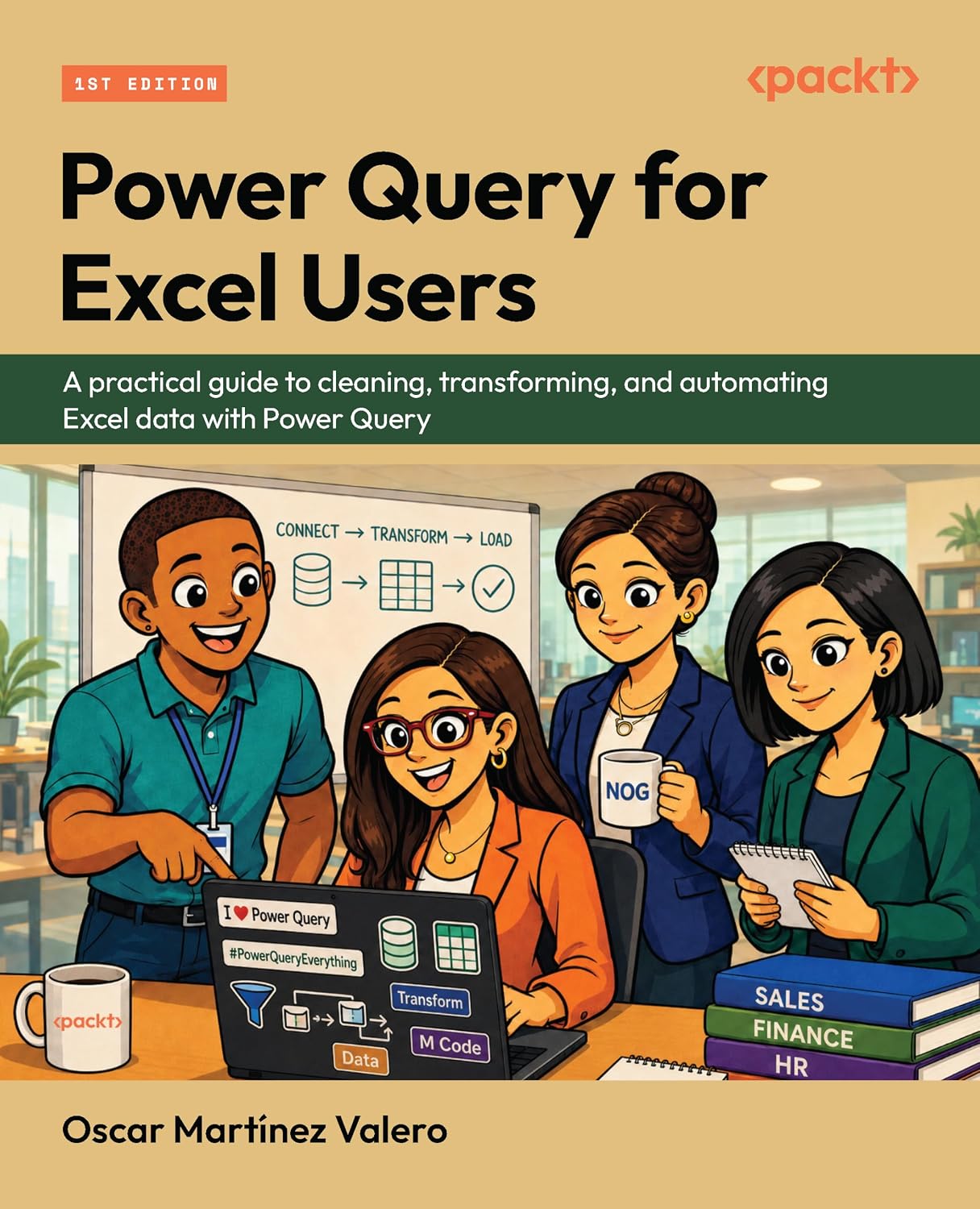
Power Query for Excel Users — New Book
12 real workplace scenarios. Every chapter ends with a deliverable. Follow Quinn from messy exports to a working data model. Published by Packt.
Understanding the Grain
The grain of a dataset is the most fundamental modeling decision you make before writing a single query. Get it wrong and no DAX fix will save you.

Building Claude Dashboards on Microsoft Fabric with Fabric IQ MCP
Build a Claude Dashboard from a Microsoft Fabric semantic model via the Fabric IQ MCP server: DAX queries, CSV snapshots, and the quirks we hit along the way.
Power BI SVG Measures: 7 Use Cases, 17 Rules, and an AI Prompt
Power BI SVG measures: stop breaking yours. Learn where to use them, follow 17 priority-based rules, and grab an AI prompt template for bulletproof visuals.
Connecting Clockify to Power BI: Three Integration Patterns That Work
Connect Clockify to Power BI three ways: hand-rolled Web.Contents calls, the free custom connector, or a ready-made template. Pick by build versus ship.
bibb Analytics: Designing Measurement Like a BI Problem
The same framework we apply to client BI work applies here: goals first, layers second. Here is the strategy behind bibb.pro's analytics.
bibb Analytics Build in Public: Introduction
bibb.pro had GA4 running since day one. Events were firing. Data was collecting. But without a strategy, that is noise with a database attached. This series documents fixing that.
Git for Power BI and Fabric Users: A Beginner's Guide
Power BI and Fabric development is moving toward programmatic workflows. Here is what Git is, how to install it on Windows, and how to use it as a BI or Fabric developer.
6 Power BI Modern Button Slicer UI Patterns for Better Dashboards
Learn 6 Power BI Button Slicer UI patterns to build modern dashboards: segmented controls, tabs, KPI cards, toggle buttons, and more.
Salesforce Power BI Integration: A Practical Comparison Guide
Salesforce Power BI integration done right: compare native connectors, custom API, and the Metrica connector to choose the best approach for your team.

How to Design Better KPIs Before They Mislead You
How to design better KPIs starts with knowing what your formula isn't measuring. A real BI case study in dashboard blind spots, with DAX examples and a fix.
Load your theme
Drop your theme.json here
or click to browse files
Don't have a theme yet? The Theme Generator lets you build one visually.
Choose icons
No icons available. Upload some SVGs.
Inject & download
Load a theme file in Step 1 to inject icons into JSON
How to apply your icons in Power BI
- 1Download your updated theme JSON using the button above.
- 2In Power BI Desktop, go to View → Themes → Browse for themes and select the downloaded file.
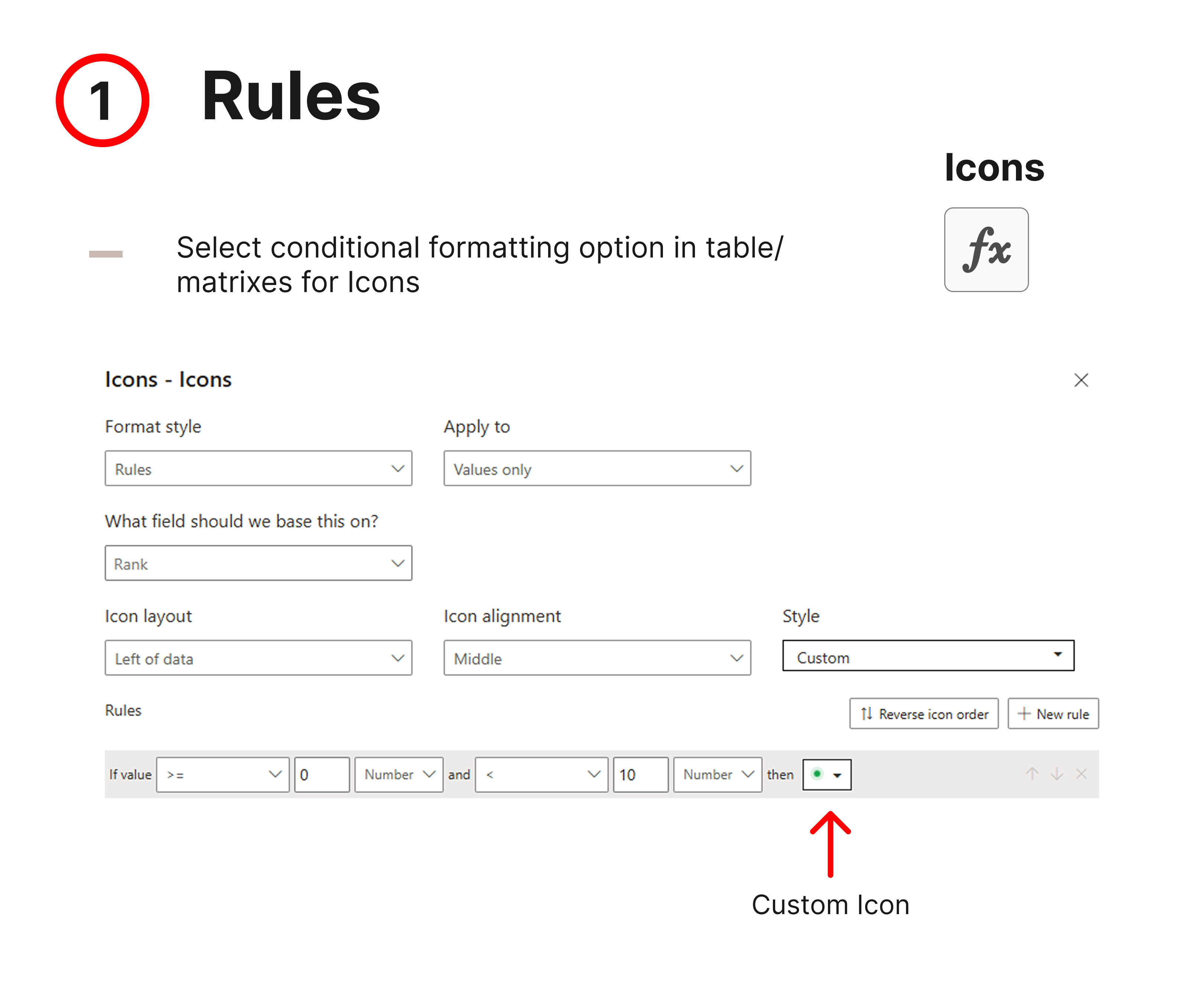
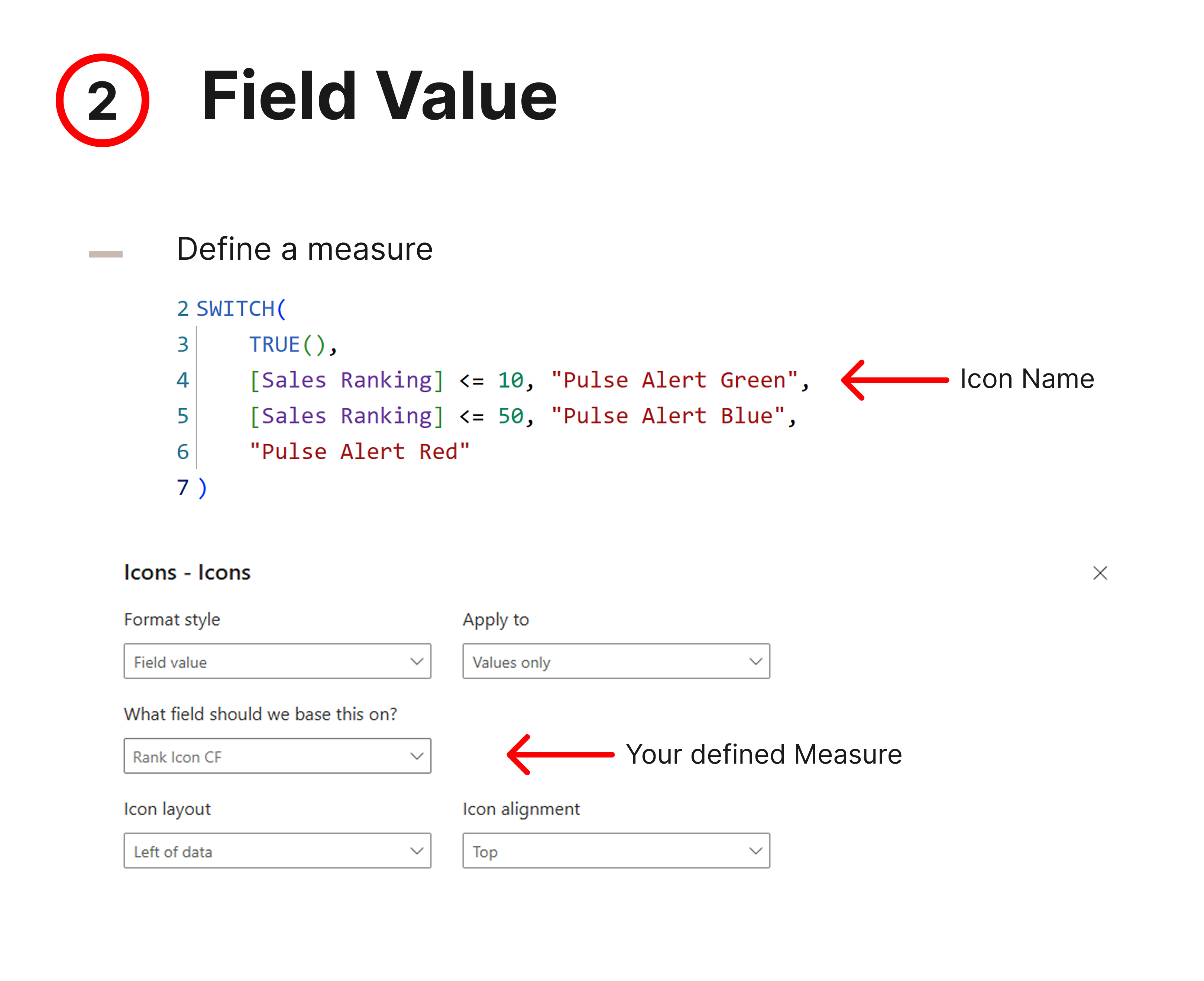
- 3Open any Table or Matrix visual and click the conditional formatting icon (fx) on a measure.
- 4Choose Icons as the format type — your custom icon set will appear in the style dropdown.
- 5Apply and save your report. The icons travel with the theme file.
Two ways to use your custom icons in Power BI
Comments
Share your feedback, icon requests, or ask questions below.